 Features / AI Features
Bizby in Microsoft 365 Copilot
The Bizby agent brings your boards into Microsoft 365 Copilot. From Copilot Chat in Teams, in the Microsoft 365 app or on the web, Copilot can build a board from what you have been discussing, add to a board you already have, find a board by name, read what your team put on it, and revise or undo what it drew.
Nothing arrives as a picture. What Copilot builds is native Bizby content (sticky note stacks, planners, process shapes, polls and bound arrows) that your team can move, edit and extend like anything they drew themselves.
What Copilot can do with your boards
Section titled “What Copilot can do with your boards”| Build | Make a new board, or add a drawing to a board you name: a retrospective, a flow chart, a story map, a planner, a matrix, a timeline |
| Find | Find a board by its name, with a link to open it |
| Read | Read a board back, including what people wrote, voted for and decided, to summarise a workshop, say which option won, or list the actions and their owners |
| Change | Change one part of a drawing it made, revise the whole drawing, undo its last change, or remove it |
Copilot acts as you: it sees the boards you can see and changes only the boards you can change. Before it changes a board, Copilot asks you to confirm.
Setting it up
Section titled “Setting it up”1. Turn it on for your team. A team owner opens Team settings → Integrations → Microsoft 365 Copilot connector and enables it. Until then nobody on the team can connect.
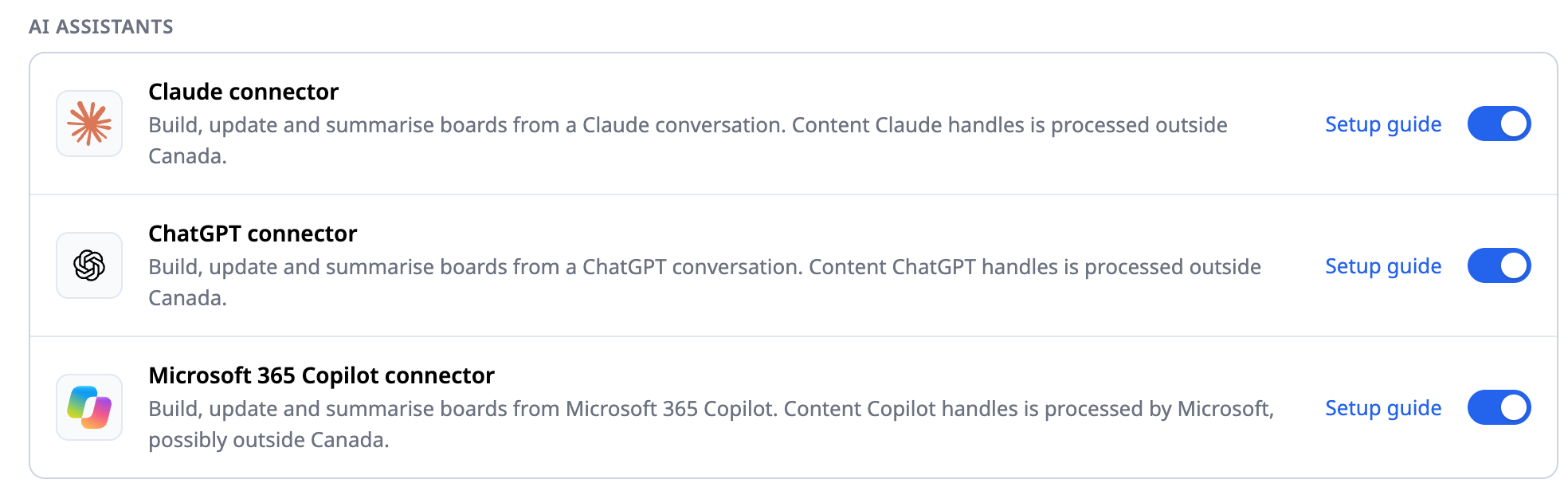
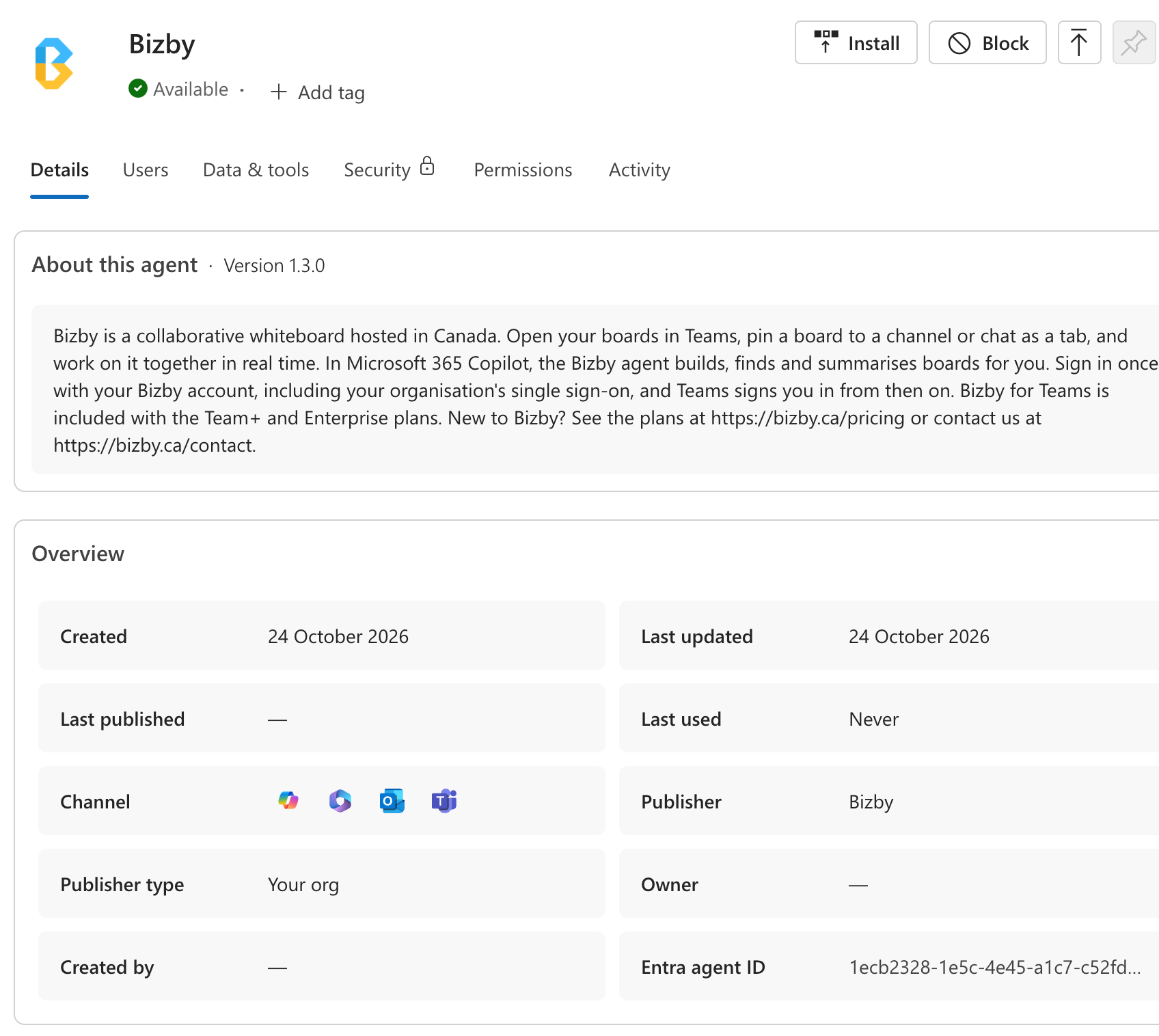
2. Make the Bizby app available. The Bizby agent comes with the Bizby app for Microsoft Teams. If your organisation has the app, the agent is there too. Your Microsoft 365 admin can allow or block it like any other agent, in the Microsoft 365 admin center.
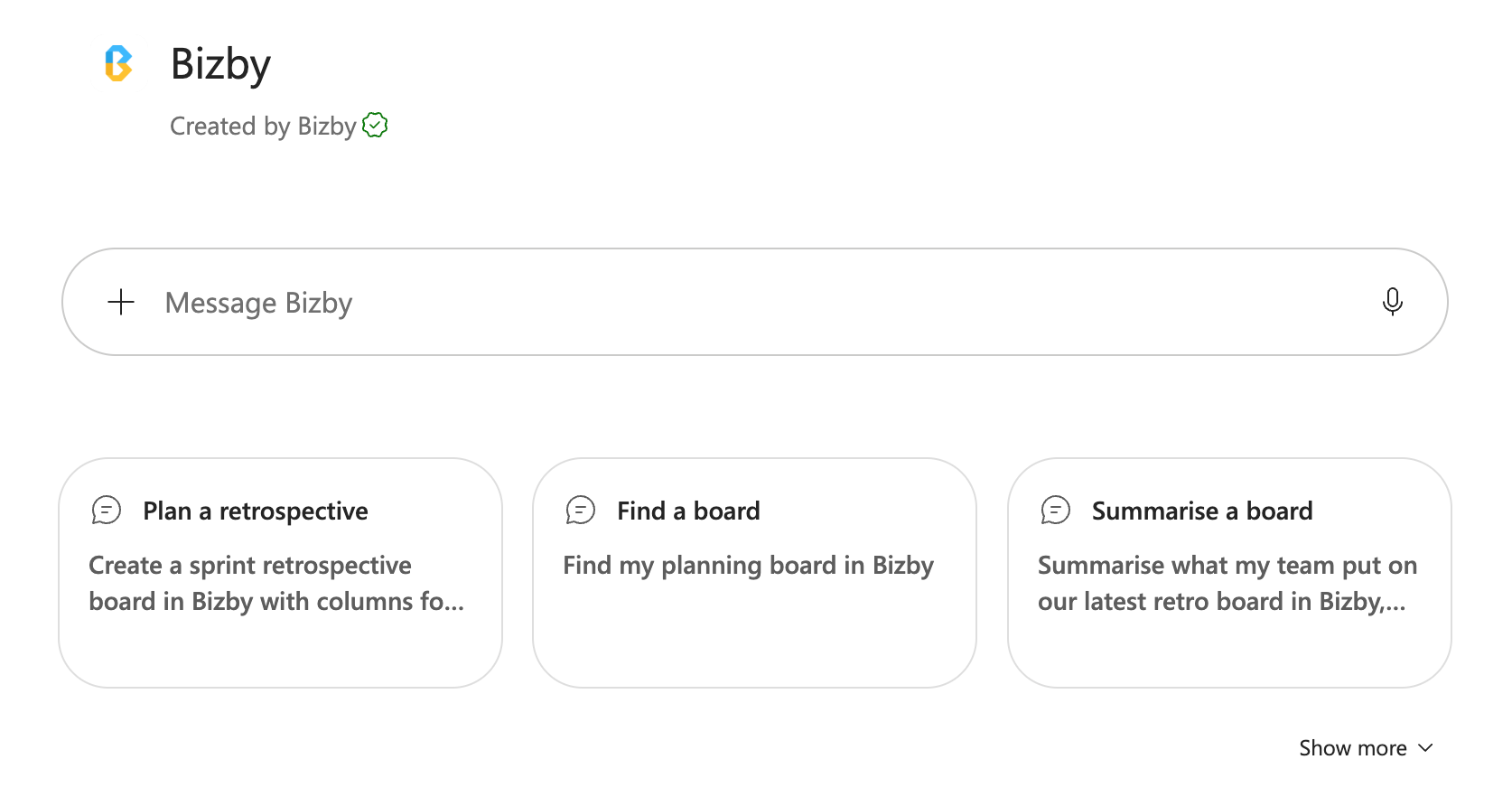
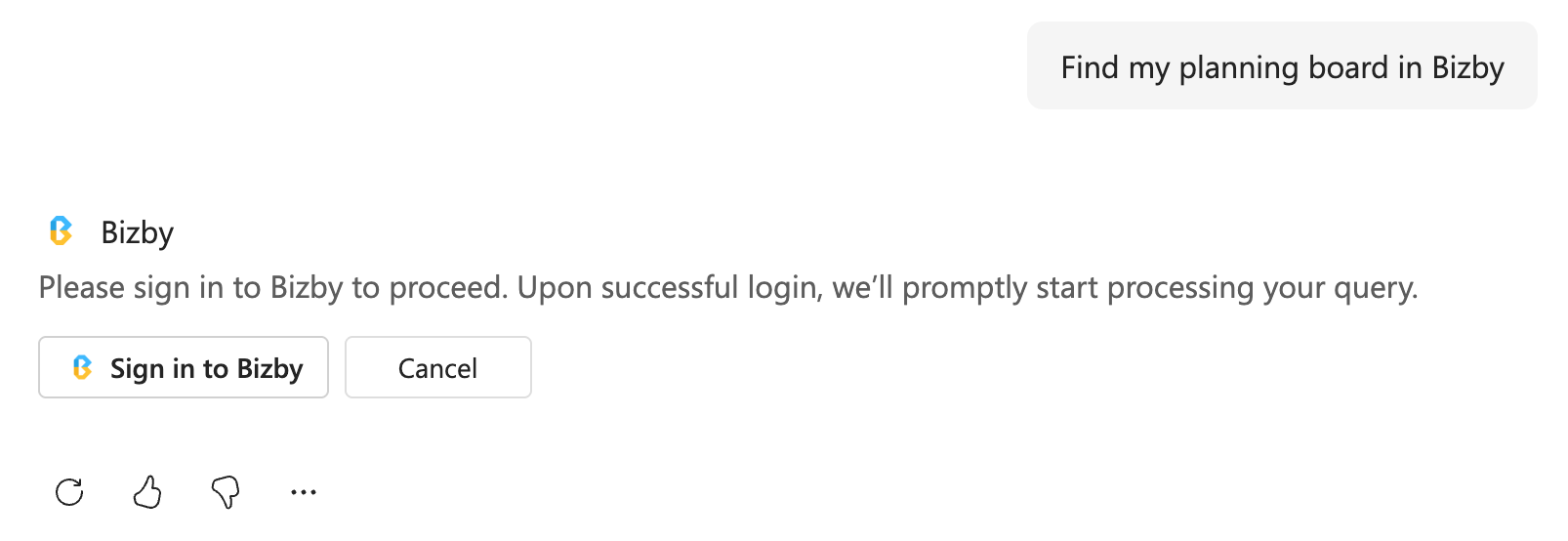
3. Open Bizby in Copilot. In Copilot Chat, open Agents and choose Bizby. The first time Copilot needs your boards, it asks you to sign in: Bizby’s page names Microsoft 365 Copilot, so you know what you are letting in. If your team is not on Team+, or the Copilot connector is off, this is where it stops.
What to ask for
Section titled “What to ask for”Build
- “Create a sprint retrospective board in Bizby, Went well / Didn’t go well / Actions”
- “Build a Bizby flowchart for onboarding a new hire, with a decision step for whether IT equipment is ready”
Find and read
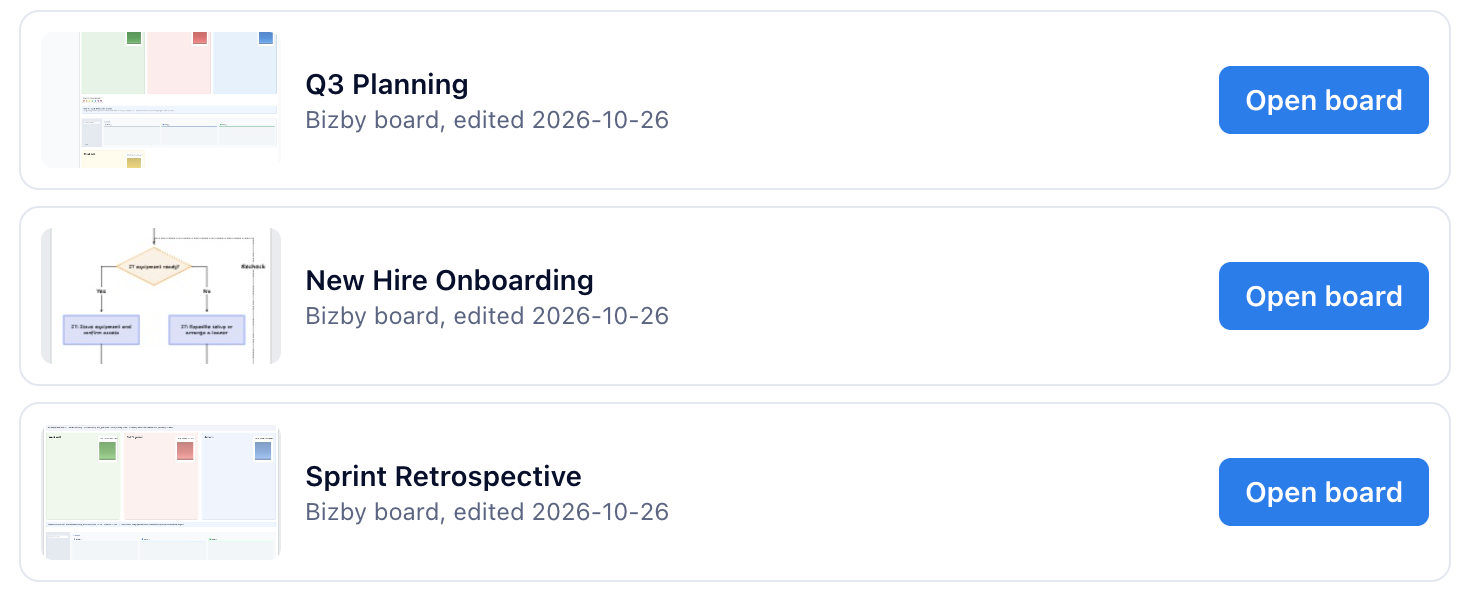
- “Find my Q3 planning board in Bizby”
- “Summarise what the team put on the sprint 14 retro board, and list the actions with their owners”
- “Which option won the vote on the tooling board?”
Change
- “Add a Now / Next / Later planner to my Q3 Planning board for the launch work we just discussed”
- “Rename the first step of the onboarding flow chart to ‘Offer accepted’”, then “undo that”
Starting from Bizby
Section titled “Starting from Bizby”You can also start in Bizby. Open Kickstart on a board, open Design with AI and pick Copilot, then choose a prompt or type your own. Bizby copies the prompt, with the board’s link, and opens Copilot Chat. Choose Bizby under Agents and paste. The result lands on the board you are on.
If Copilot is not set up for you yet, the panel says so and gives you a link to this page to copy and send to your Microsoft 365 admin. The setup steps above are what they need. Once you have used Bizby from Copilot, the panel stops showing it.
Drawings, and what Copilot can touch
Section titled “Drawings, and what Copilot can touch”Each thing Copilot draws is kept as its own drawing. Naming it lets you revise just that piece later, leaving everything else on the board alone, and every change can be undone a step at a time.
Limits
Section titled “Limits”Each account gets 20 requests a minute, 100 requests a day, and 25 new boards a day, shared across Claude, ChatGPT and Microsoft 365 Copilot. Adding to and revising boards keeps working after the board limit is reached. Normal use does not come close to these.
Where the work happens
Section titled “Where the work happens”What Copilot reads from a board, and what it builds, is processed by Microsoft under your organisation’s Microsoft 365 agreement and data residency settings, which may be outside Canada. The boards themselves stay on your team’s normal Bizby infrastructure, in Canada, like every other board. If your team requires full Canadian data residency, leave the connector off: Bizby Kickstart builds boards without leaving the country. The privacy policy covers this in section 9.3.
If it is not working
Section titled “If it is not working”| What you see | What it means |
|---|---|
| Bizby refuses at the sign-in page | Your team is not on Team+, or the Copilot connector is switched off. That is the gate working |
| Bizby is not among Copilot’s agents | Your organisation does not have the Bizby app for Teams yet, or an admin has not allowed the agent |
| “You have used today’s…” | A daily limit. It resets at midnight UTC |
To stop Copilot working with your boards, a team owner can switch the Microsoft 365 Copilot connector off for everyone in Team settings → Integrations.
Related
Section titled “Related”- Bizby and Microsoft 365 for every Microsoft connection on one page, for administrators
- Bizby for Microsoft Teams for boards in channels, chats and meetings
- Bizby in Claude and Bizby in ChatGPT for the same connector in other assistants
- Team+ Plan for what else is on the plan
- Canadian Infrastructure for where board data lives