 Features / AI Features
Bizby Kickstart
Bizby Kickstart is the fastest way to go from a blank canvas to a working board. Describe what you are planning in plain language and Kickstart’s AI generates a structured, ready-to-edit board in seconds, or start from a popular template.
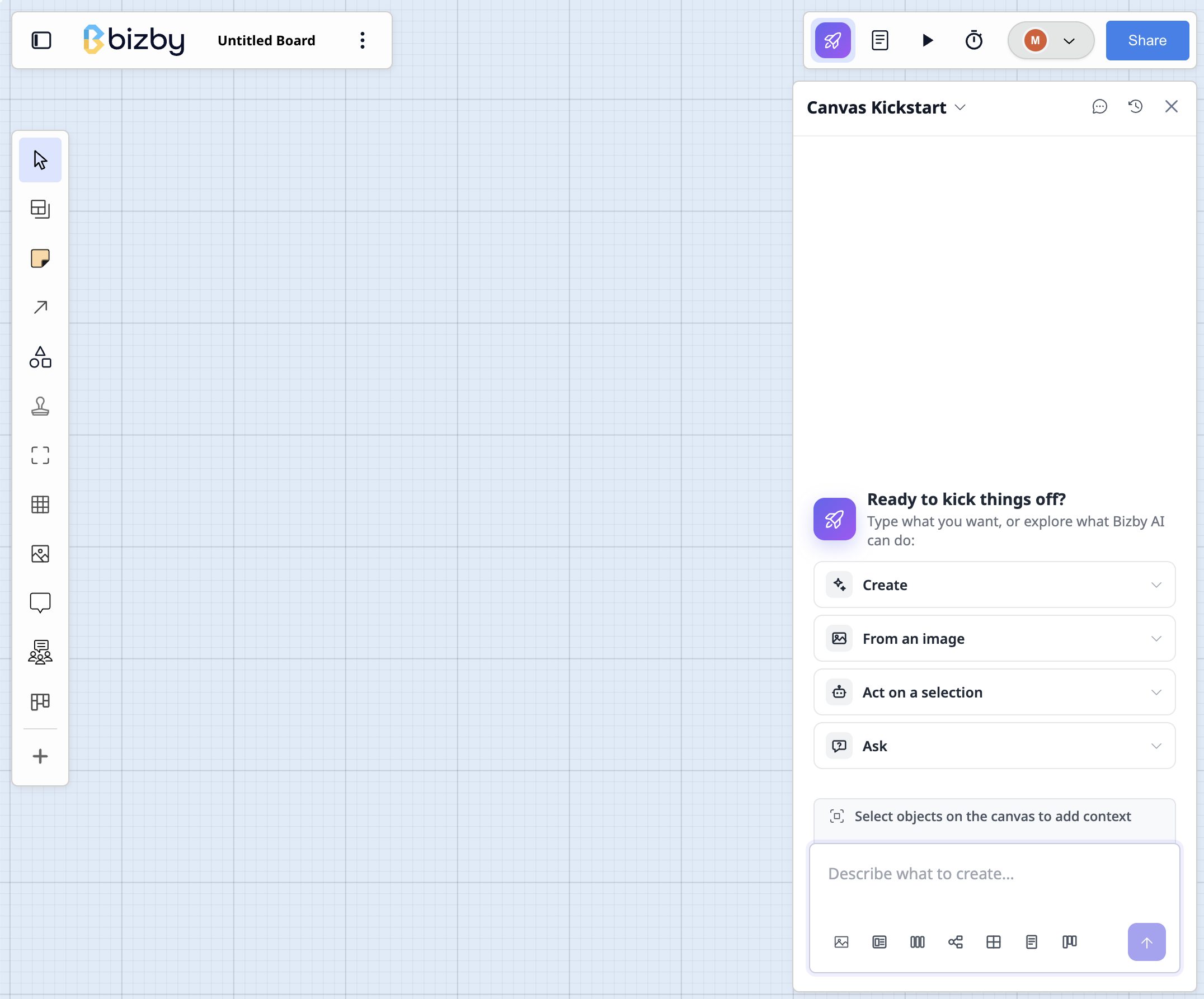
Where to find it
Section titled “Where to find it”Open a new or empty board and the Kickstart panel appears on the canvas, ready to help you begin. It stays one click away anytime behind the rocket button on the canvas, so you can call it up whenever you want a fresh start.
Start from a description
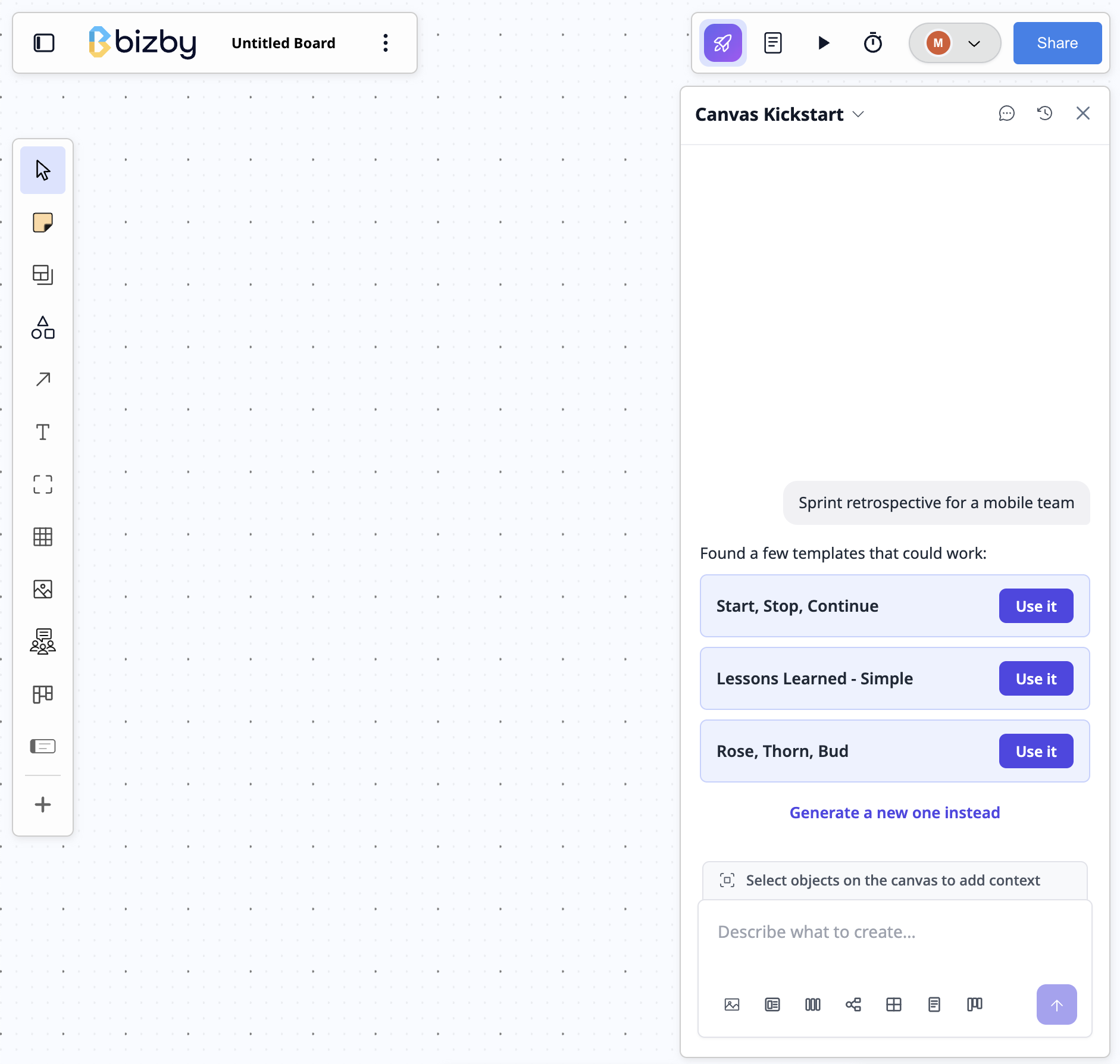
Section titled “Start from a description”Tell Kickstart what you want to make, for example “Sprint retrospective for a mobile team” or “Current-state process map for licence exemptions”, and its AI builds a starting board with the right shapes, columns, and connections already laid out. Everything it creates is native Bizby content, so you can edit, recolor, move, and extend it just like anything else on the canvas.
Design with AI
Section titled “Design with AI”On Team+, the panel can hand the work to an AI assistant instead: Claude, ChatGPT or Microsoft 365 Copilot, whichever your team has switched on. Open Design with AI, pick the assistant, and choose a prompt or Rebuild from an image. Bizby opens the assistant with the prompt and the board you are on, so what it builds lands beside what is already there rather than on a board you have to go and find. Build in Bizby instead is always one click away.
The first time, the panel shows how to connect the assistant you picked. Claude and ChatGPT both list Bizby in their directories: the panel opens Bizby’s page there and you click Connect. Copilot needs the Bizby app in your organisation, so the panel gives you the admin guide to pass to your Microsoft 365 admin. Once you are connected, links under the picker take you to Bizby’s page in that assistant and to the guide. See Design in Claude, Bizby in ChatGPT and Bizby in Microsoft 365 Copilot.
Each assistant is off until a team owner enables it in Team settings → Integrations. With none on, the section is not shown. On Free and Team, the panel shows a short note in its place, with a link to see plans. Everything below still works either way.
Start from a template
Section titled “Start from a template”Prefer a proven starting point? Pick a popular template from the panel to drop a ready-made layout onto your board, then make it your own. Kickstart also looks for a matching template whenever you describe a board, so a good existing layout is offered before anything is generated.
- The more specific your description, the closer the first draft lands to what you had in mind.
- Kickstart gives you a head start, not a finished board. Treat the result as a strong first draft you refine with your team.
- Dismiss the panel whenever you like. It stays one click away behind the rocket button.
- Kickstart is at its best acting on what is already on the board: summarizing a selection, recreating an image as shapes, answering a question about the canvas. For a board designed from nothing, Design with AI gives a better result.