OneDrive and SharePoint
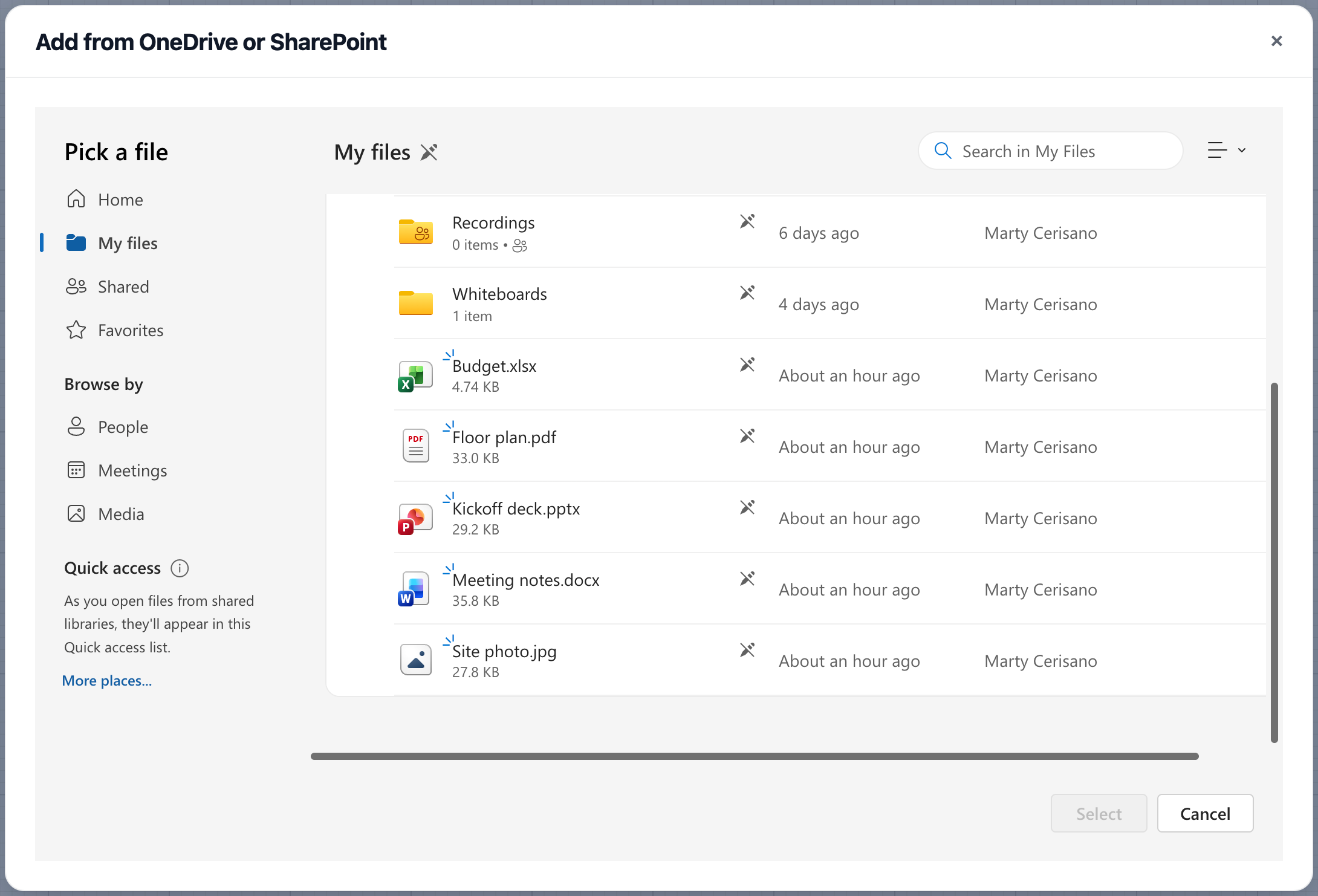
Add a file from your OneDrive or any SharePoint site you can open, straight from a board. The picker is Microsoft’s own, so browsing, search and Quick access look exactly as they do in OneDrive.
Adding a file
Section titled “Adding a file”- Click OneDrive or SharePoint on the toolbar, or open the board menu and choose Board → Import from → OneDrive or SharePoint…
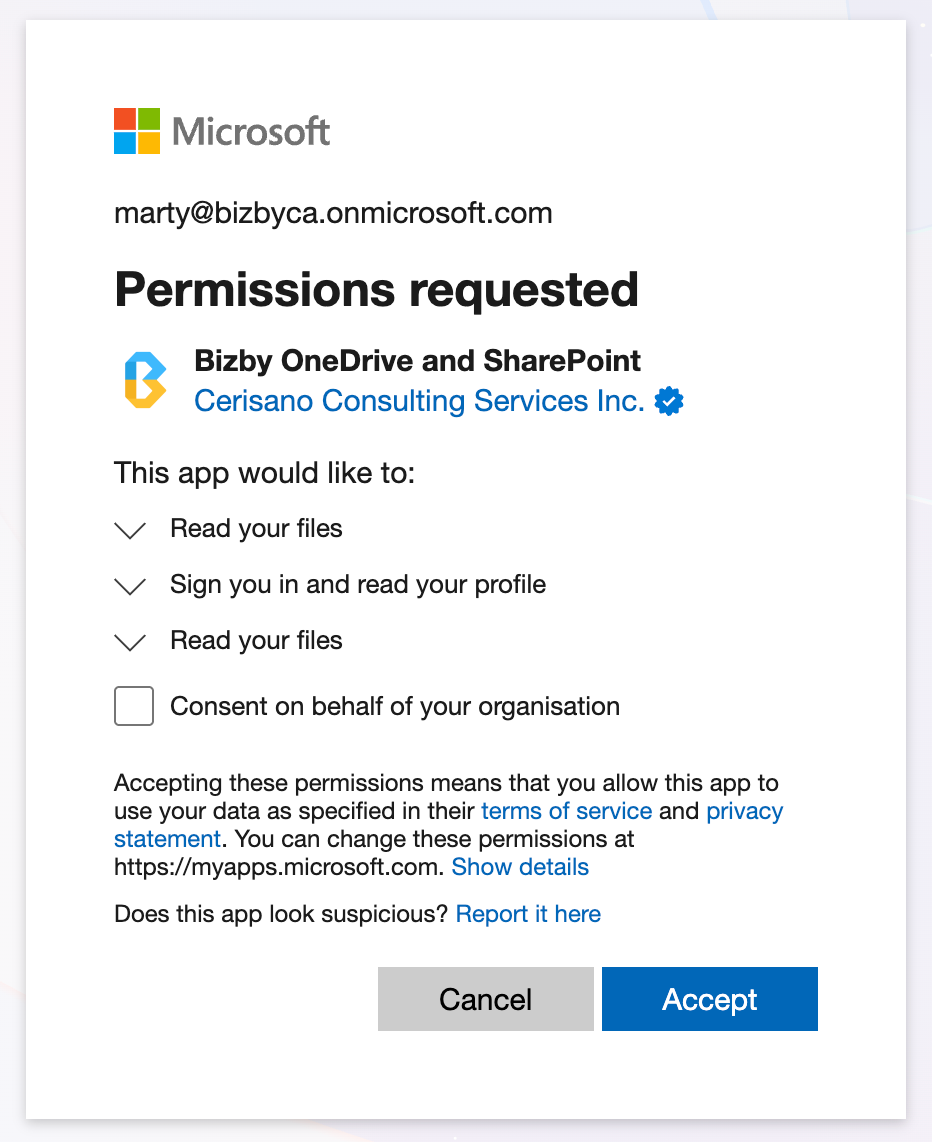
- The first time, sign in with your work or school Microsoft account and approve Bizby on the one permissions screen Microsoft shows.
- Browse or search for the file, select it, then click Select.

If the button is not on your toolbar, click + at the bottom of the toolbar and add OneDrive or SharePoint, which is marked New. It stays on your toolbar, and you can drag it to any position.
Finding SharePoint files
Section titled “Finding SharePoint files”- My files is your OneDrive.
- Shared lists files other people have shared with you.
- Quick access lists the SharePoint sites and Teams channels you use. If a site is missing, open it once in SharePoint and it appears here, or use More places… to find it.
What lands on the board
Section titled “What lands on the board”What you get depends on the file:
| File | On the board |
|---|---|
| Images and video | Added as an image or video, the same as dropping it from your desktop. |
| Opens the PDF import, where you choose the pages. | |
| PowerPoint (.pptx) | Imported as slides. |
| Word, Excel and everything else | A link card that opens the file in SharePoint. |
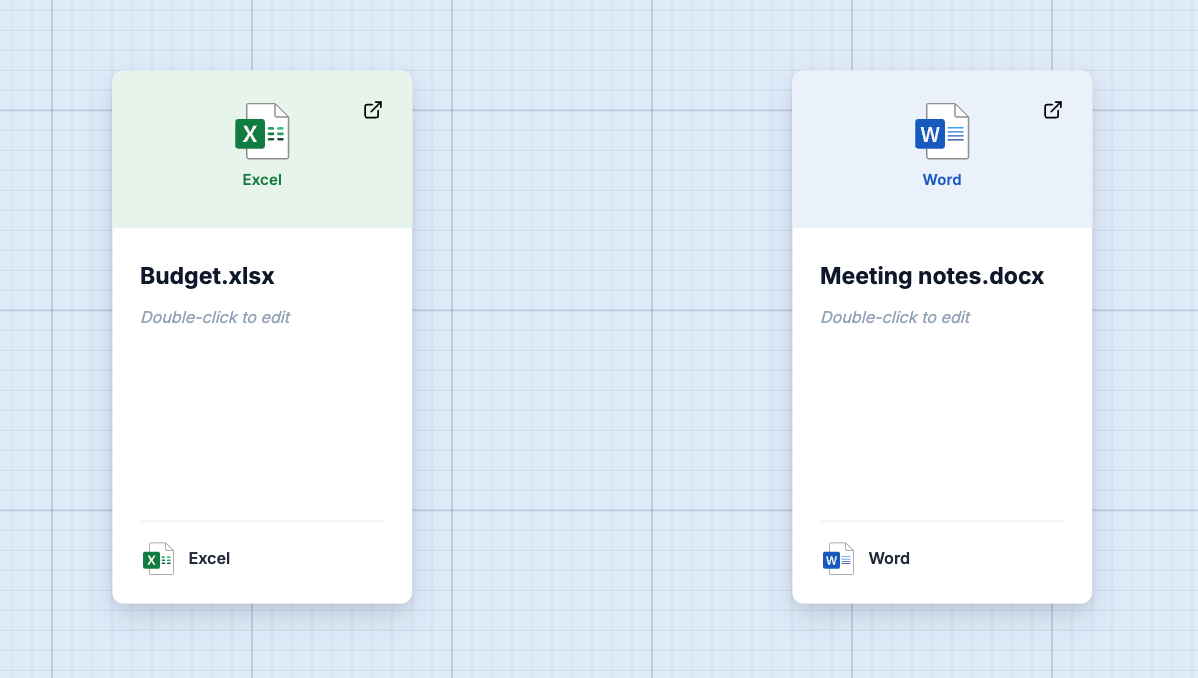
A link card does not copy the file. Whoever opens it goes to SharePoint, which applies its own permissions, so a board never widens who can read a document.
The picker adds one file at a time. To add several, open it again for each one.
Privacy and data
Section titled “Privacy and data”- Bizby asks only for delegated permissions. The picker can reach only files you can already open, and acts as you.
- Your Microsoft access is held in your browser tab’s memory. It is never stored by Bizby or sent to its servers, and it is cleared when you sign out of Bizby.
- File contents go directly from Microsoft to your browser. They reach Bizby only when you import an image, video, PDF or deck onto a board, and then they are stored like any other board upload, in Canada.
Troubleshooting
Section titled “Troubleshooting”| Message | What to do |
|---|---|
| Your browser blocked the Microsoft window | Allow pop-ups for bizby.ca, then click the button again. |
| Your organization’s Microsoft 365 administrator may need to approve Bizby | Your organization lets only administrators approve apps. Send your IT team this page; the next section has what they need. |
| This Microsoft account has no OneDrive for work or school | The account you signed in with has no OneDrive licence. Sign in with your work account, or ask IT about a OneDrive licence. |
| Microsoft needs you to confirm your sign-in | Your Microsoft session expired, or your organization asks you to sign in again. Click Continue with Microsoft. |
For Microsoft 365 administrators
Section titled “For Microsoft 365 administrators”If your organization restricts user consent to apps, users see a message that their administrator may need to approve Bizby. To allow it, grant admin consent to this app in the Microsoft Entra admin center under Enterprise applications:
| Application name | Bizby OneDrive and SharePoint |
| Application (client) ID | 3b81b516-6d7d-46c3-8862-4a45c6944951 |
| Microsoft Graph (delegated) | User.Read, Files.Read |
| SharePoint (delegated) | MyFiles.Read |
All three are read permissions, and none is one Microsoft classes as high impact.
MyFiles.Read covers SharePoint sites as well as OneDrive. Bizby cannot change,
upload or delete files in your tenant.
This is a separate app from Bizby for Teams. Approving one does not approve the other, so you can allow file access without changing the Teams app, or the other way round.
To grant consent for the whole organization in one step, a Global Administrator
or Cloud Application Administrator can open this link, with your tenant ID in
place of <your-tenant-id>:
https://login.microsoftonline.com/<your-tenant-id>/adminconsent?client_id=3b81b516-6d7d-46c3-8862-4a45c6944951What this is not
Section titled “What this is not”There is no sync. A file imported onto a board is a copy taken at that moment; later changes in SharePoint do not update it. For a document that keeps changing, paste its SharePoint link onto the board instead: the link card always opens the current version.