 Features / Sharing & Presentation
Bizby for Microsoft Teams
Overview
Section titled “Overview”The Bizby app brings Bizby boards into Microsoft Teams:
- Personal app: each person’s Bizby dashboard, inside Teams.
- Board tabs: pin a board to a channel, a group chat or a meeting.
- Meetings: share a board to the meeting stage so everyone in the call works on it together.
- Link cards: a pasted Bizby board link shows the board’s name, thumbnail and Open in Teams.
- Board search: find a board from the message box and post it as a card.
- Microsoft 365 Copilot: the Bizby agent builds, finds and summarises boards from Copilot Chat.
Board content stays in Bizby, hosted in Canada. Teams only displays it.
This page is for the Teams administrator who installs the app. For every Microsoft 365 connection on one page, see Bizby and Microsoft 365. People in your organisation each need a Bizby account. They connect it once, the first time they open Bizby in Teams.
Before you start
Section titled “Before you start”You need:
- A Teams administrator (or Global administrator) role in Microsoft 365.
- Custom apps allowed in your tenant: in the Teams admin center, Teams apps → Manage apps → Actions → Org-wide app settings, turn on Let users interact with custom apps.
- The Bizby app package: bizby-for-teams.zip.
Step 1: Upload the app
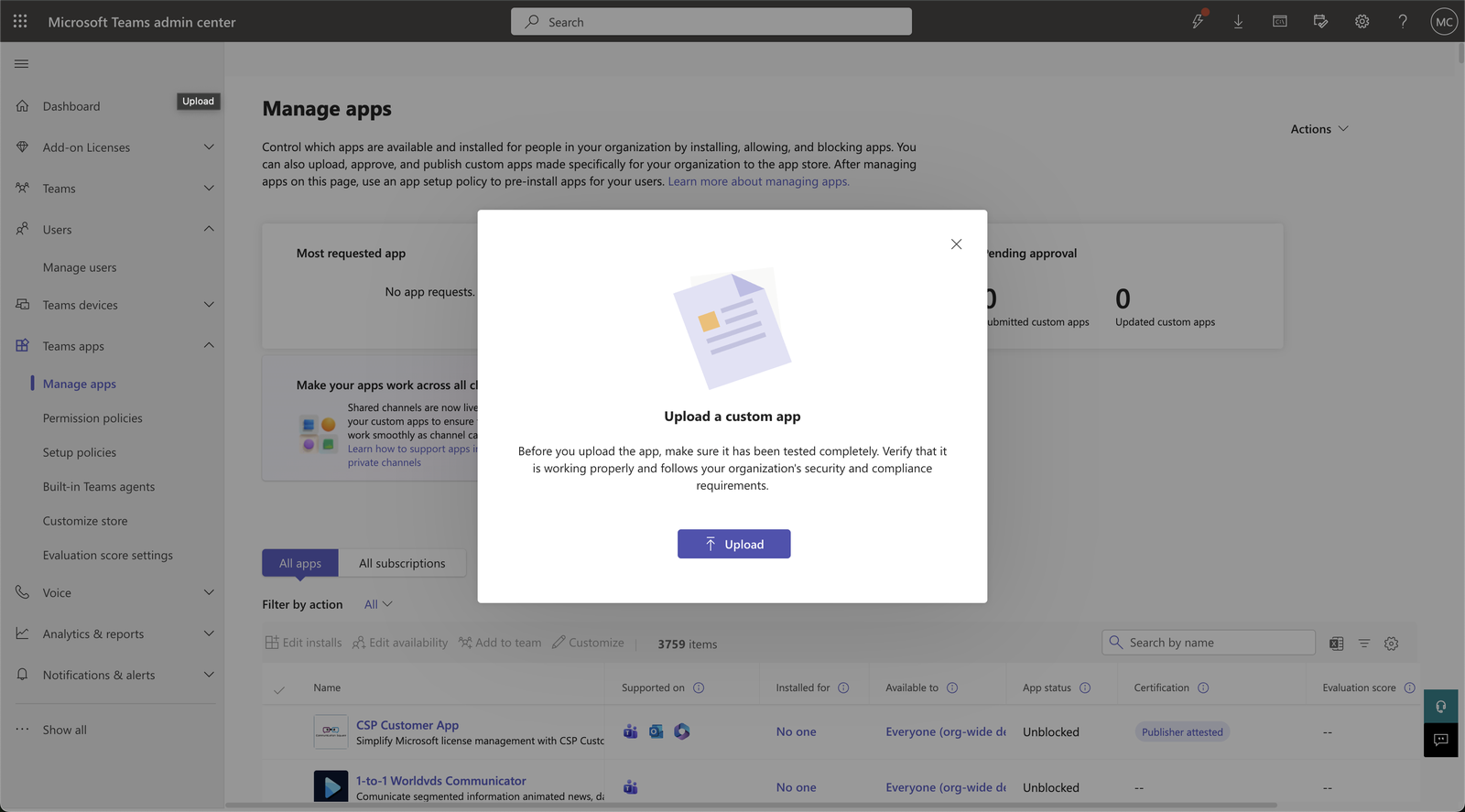
Section titled “Step 1: Upload the app”- Sign in to the Teams admin center.
- Go to Teams apps → Manage apps.
- Select Actions → Upload new app, then Upload, and choose
bizby-for-teams.zip. - Find Bizby in the list and check that its status is Allowed.
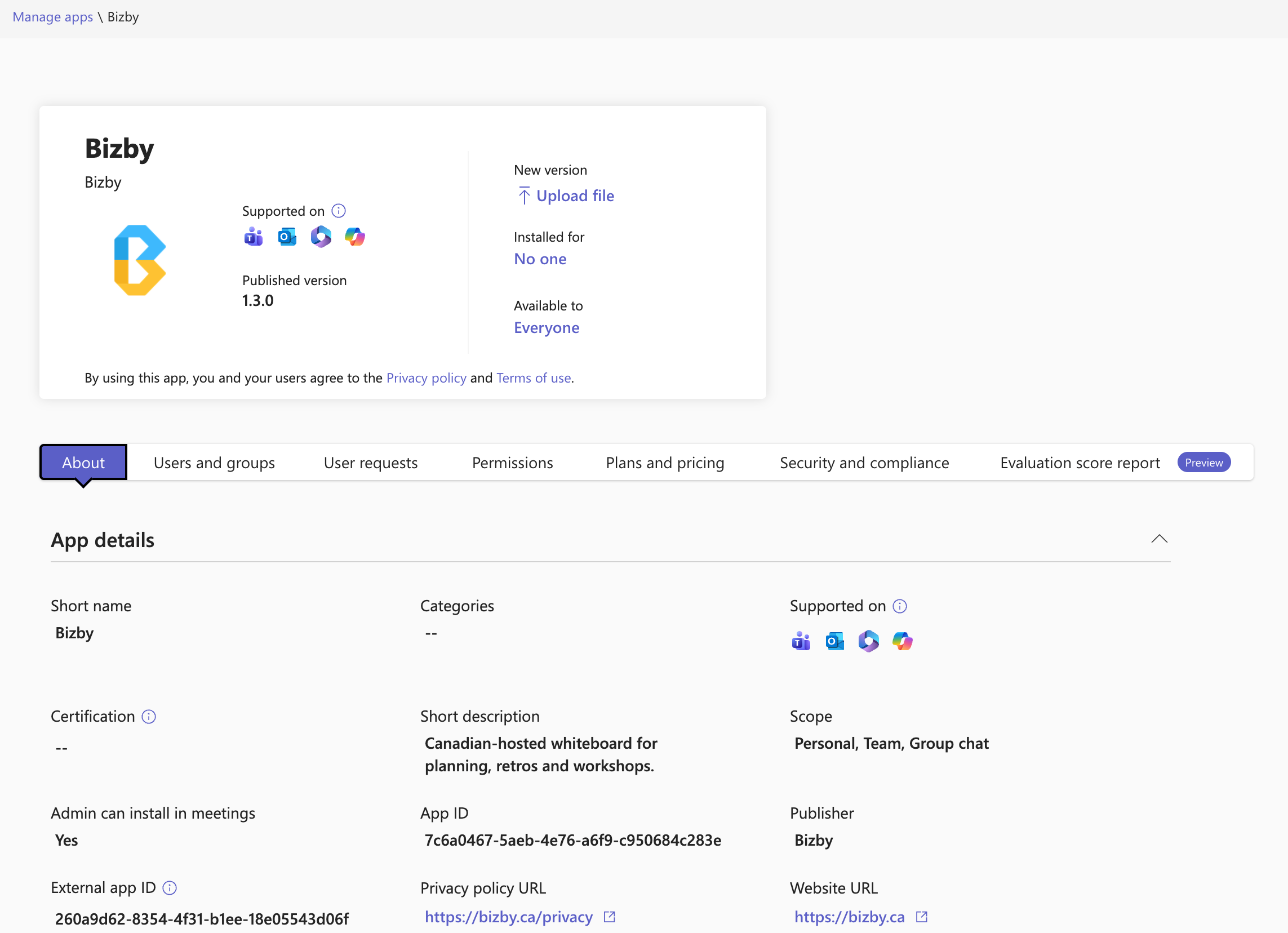
Bizby’s page in the admin center also shows a generic list, from Microsoft, of what apps of this kind can do in Teams. What Bizby actually receives is under What Bizby receives from Teams.
To update the app later, open Bizby in Manage apps and choose Upload file with the new package. Tabs and links already in use keep working.
Step 2: Make it available
Section titled “Step 2: Make it available”By default, the global app permission policy lets everyone use allowed apps. To limit Bizby to some people, use Teams apps → Permission policies.
To pin Bizby to the Teams app bar for a group, add it to a setup policy in Teams apps → Setup policies.
Step 3 (optional): Approve sign-in for everyone
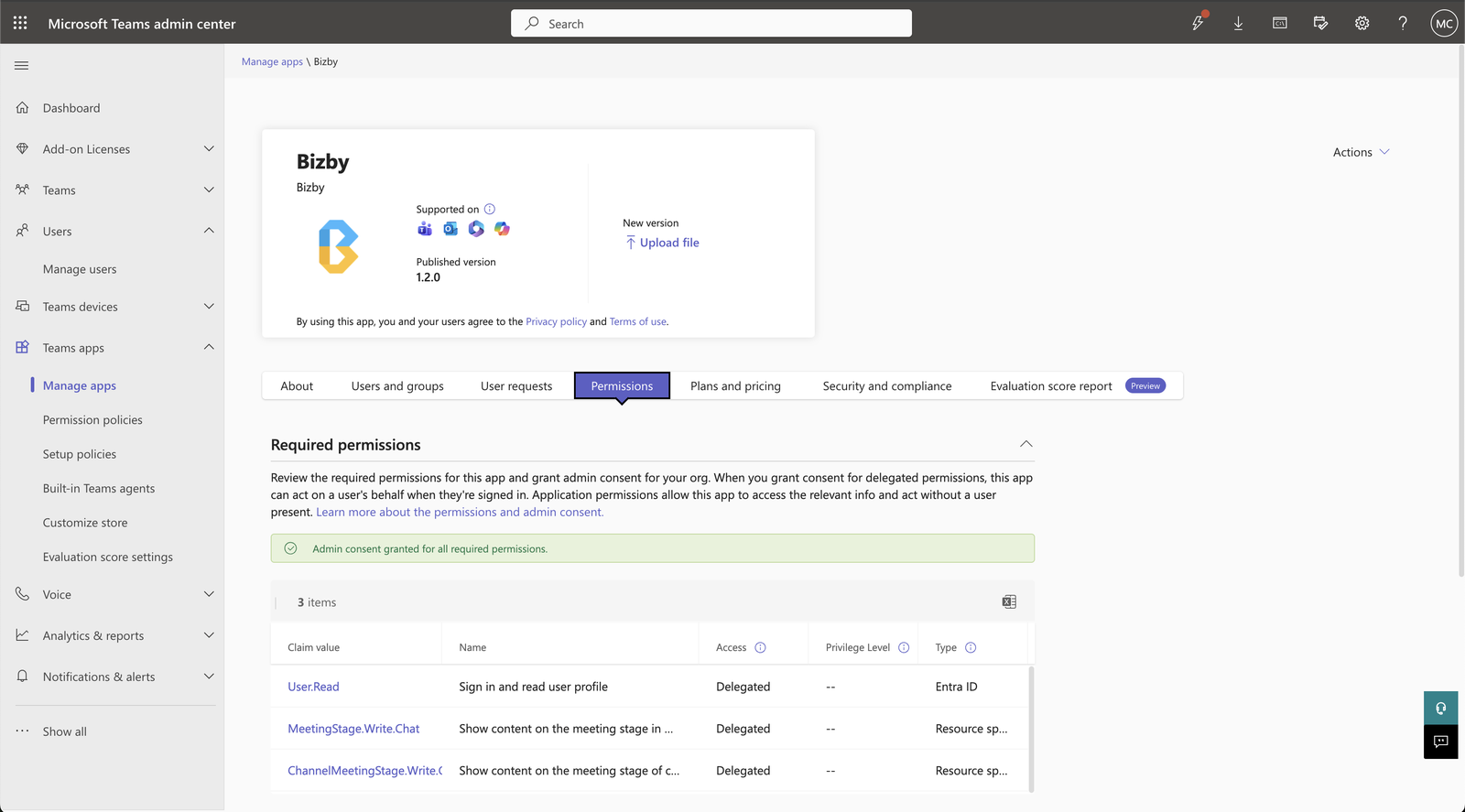
Section titled “Step 3 (optional): Approve sign-in for everyone”The first time someone opens Bizby in Teams, Microsoft asks them to allow Bizby to sign them in. If your organisation does not let users consent to apps, an administrator can approve it once for everyone. A Global administrator can do it in the Teams admin center: open Bizby in Manage apps, go to the Permissions tab and select Grant admin consent. A Global administrator or Cloud Application administrator can also approve it at this address:
https://login.microsoftonline.com/organizations/adminconsent?client_id=1ecb2328-1e5c-4e45-a1c7-c52fd54ff875Bizby asks only for permission to sign the person in (their Microsoft account’s basic profile). It cannot read mail, files, chats or calendars.
Step 4 (optional): Let meeting guests use boards
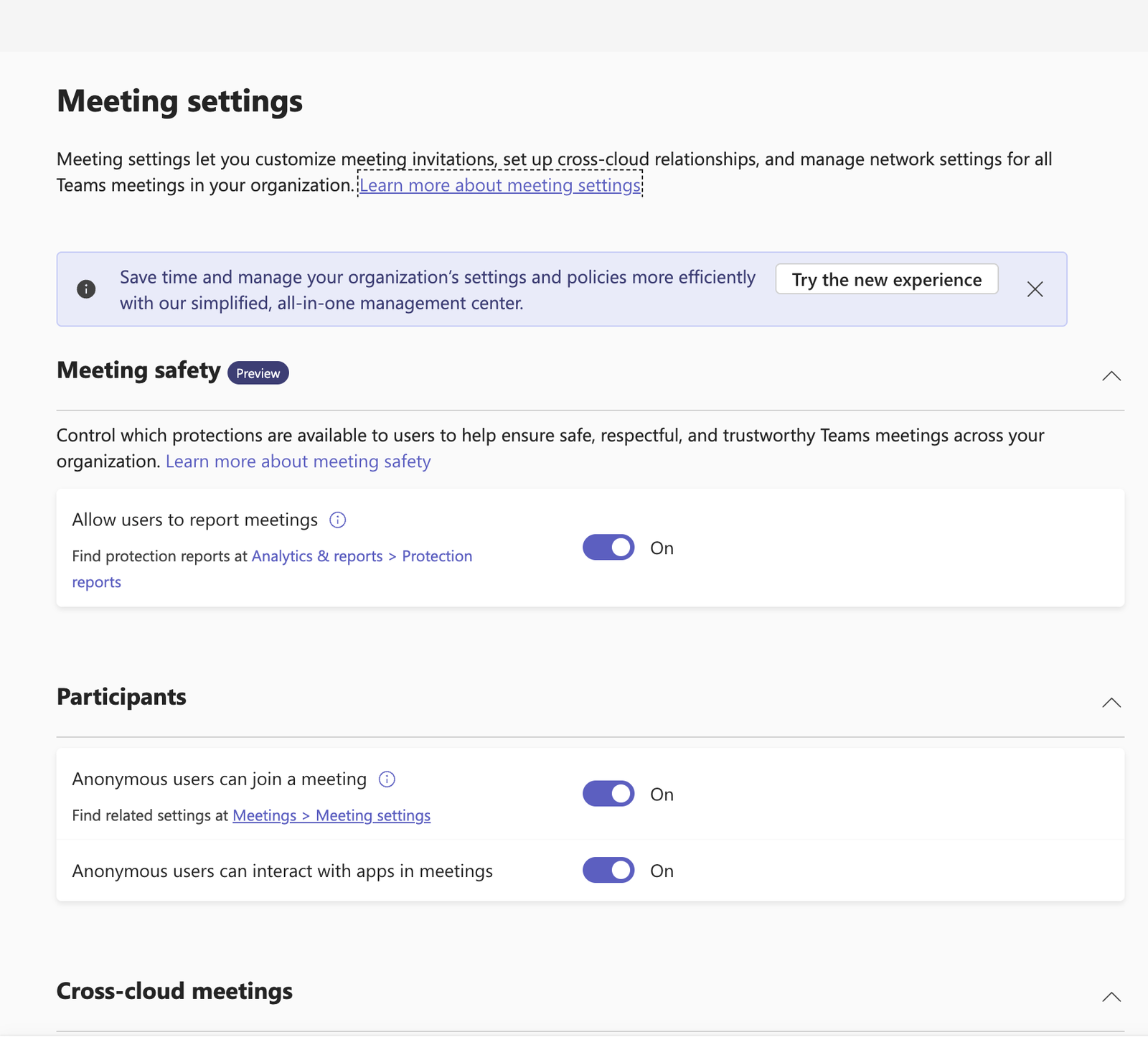
Section titled “Step 4 (optional): Let meeting guests use boards”People who join a meeting by link, without a Microsoft account, can open a board shared to the stage only when both settings are on, in Meetings → Meeting settings → Participants:
- Anonymous users can join a meeting
- Anonymous users can interact with apps in meetings
The board must also have link sharing on (see Board tabs). Guests then join the board with the share link’s access, as they would in a browser.
How people use it
Section titled “How people use it”Connect once
Section titled “Connect once”The first time someone opens Bizby in Teams, they select Connect Bizby account and sign in to Bizby once, with your organisation’s usual Bizby sign-in, including single sign-on. From then on, Teams signs them in automatically.
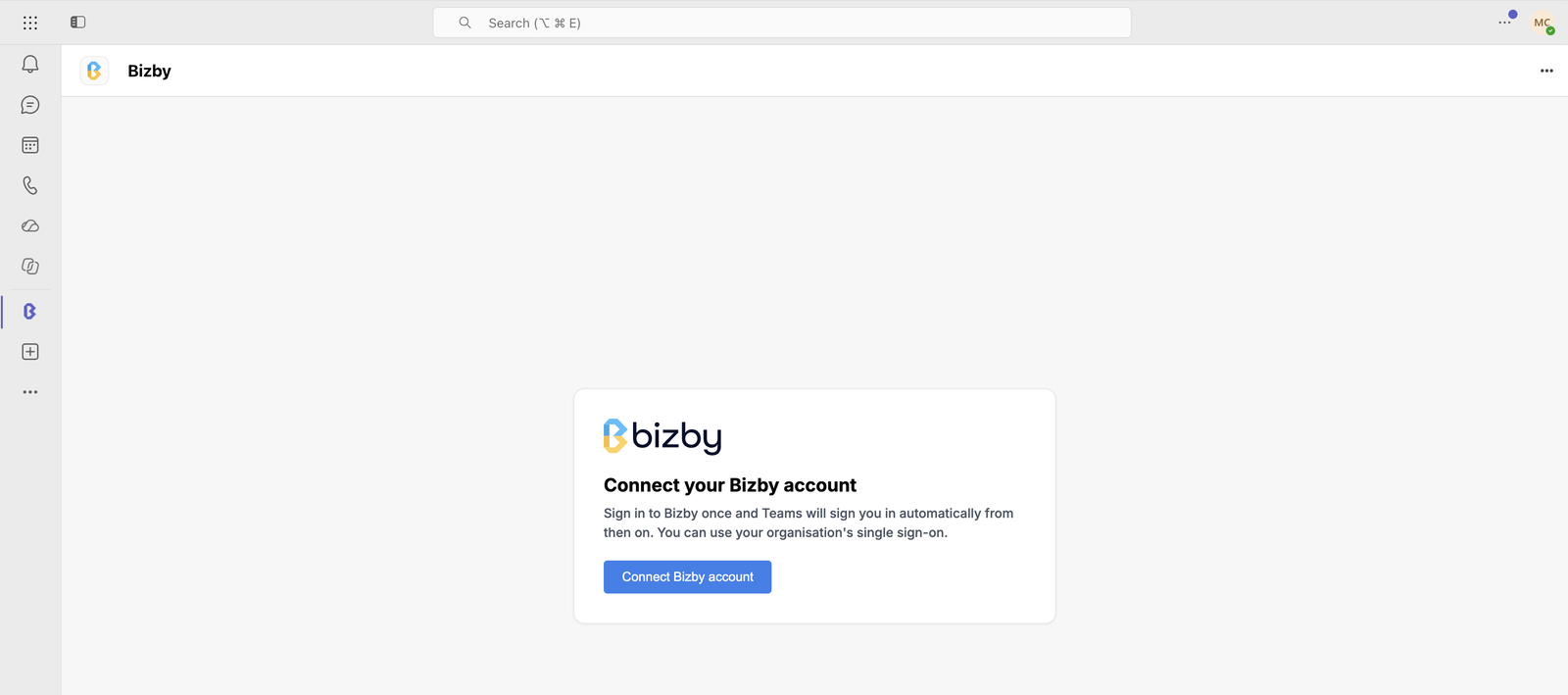
To undo it, they open Profile → Connections in Bizby and choose Disconnect on the Microsoft Teams card. The next time they open Bizby in Teams, it asks them to connect again.
Board tabs
Section titled “Board tabs”In a channel, chat or meeting, select + (Add a tab), choose Bizby, then pick an Existing board or create a New board. The setup page says who will be able to open the tab:
- Let everyone here open it as a guest: the board’s link sharing is on, so anyone in the conversation can open it, with the share link’s access (view, comment or edit).
- Only people with access can open it: link sharing is off. Turn it on in the board’s Share dialog in Bizby to open the tab to everyone.
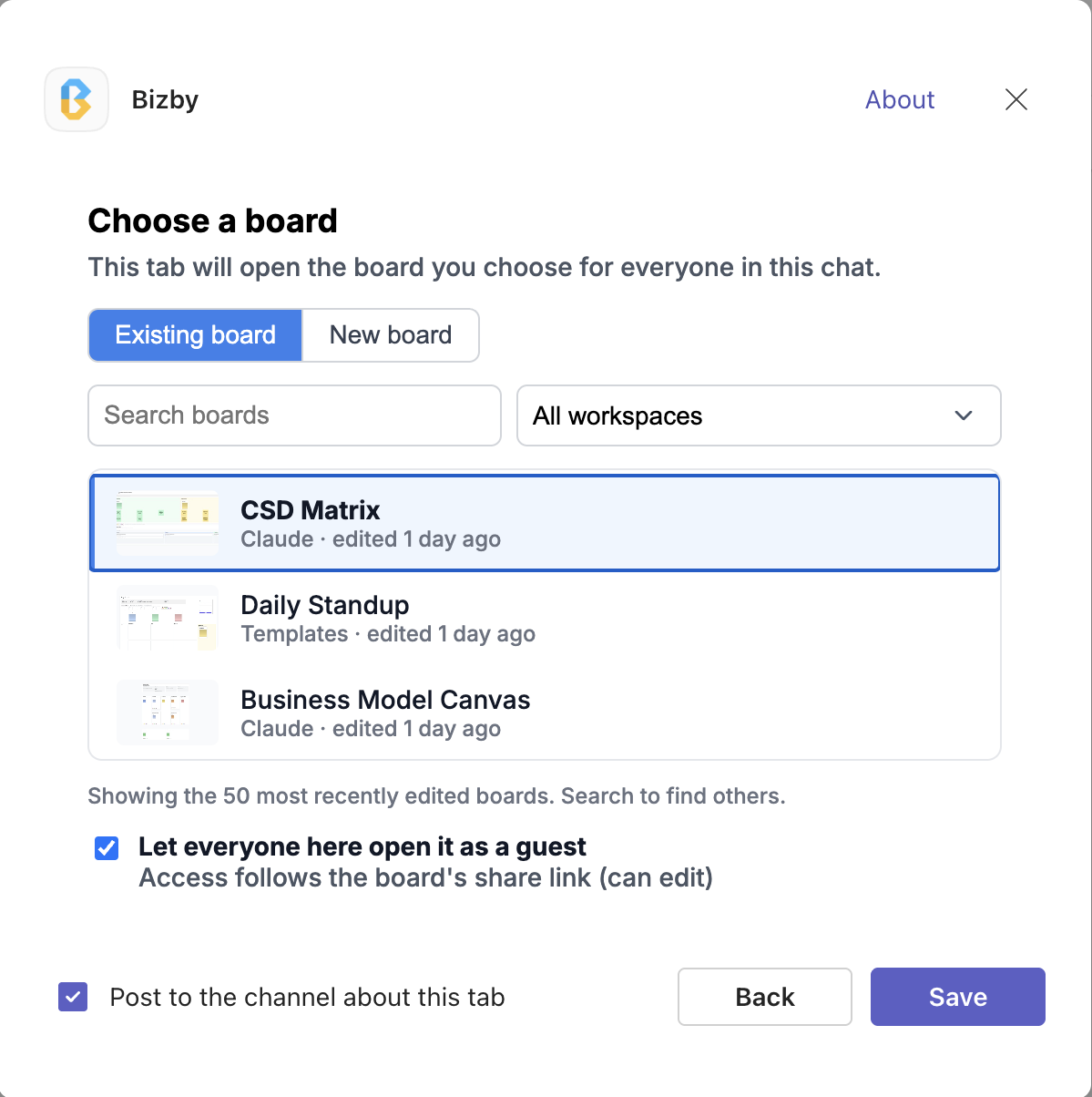
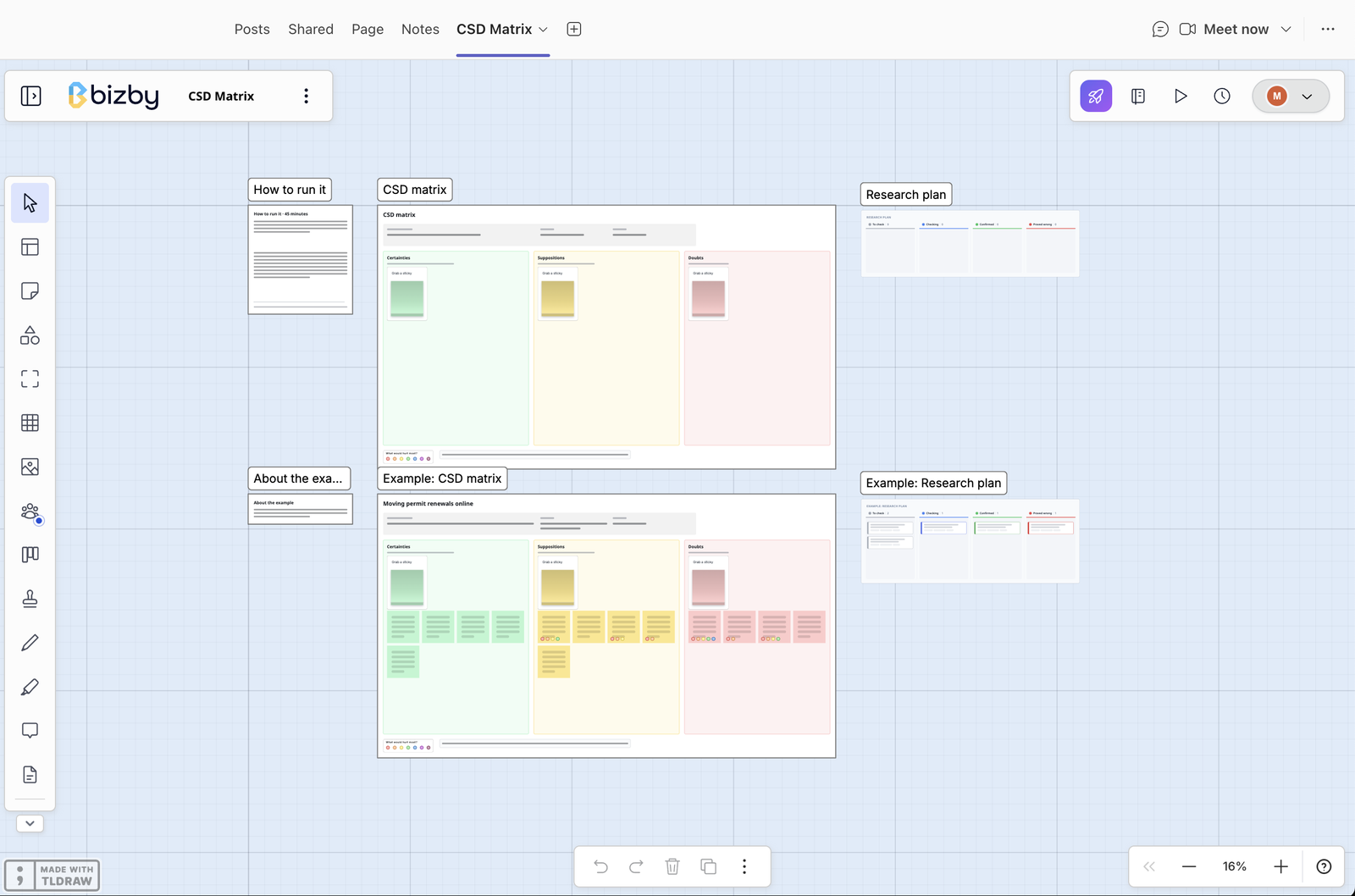
A new board created from the setup page gets its share link turned on, at the level your plan and organisation allow. Share links follow your organisation’s Bizby policies: if your organisation turned share links off, tabs open only for people with access.
Meetings
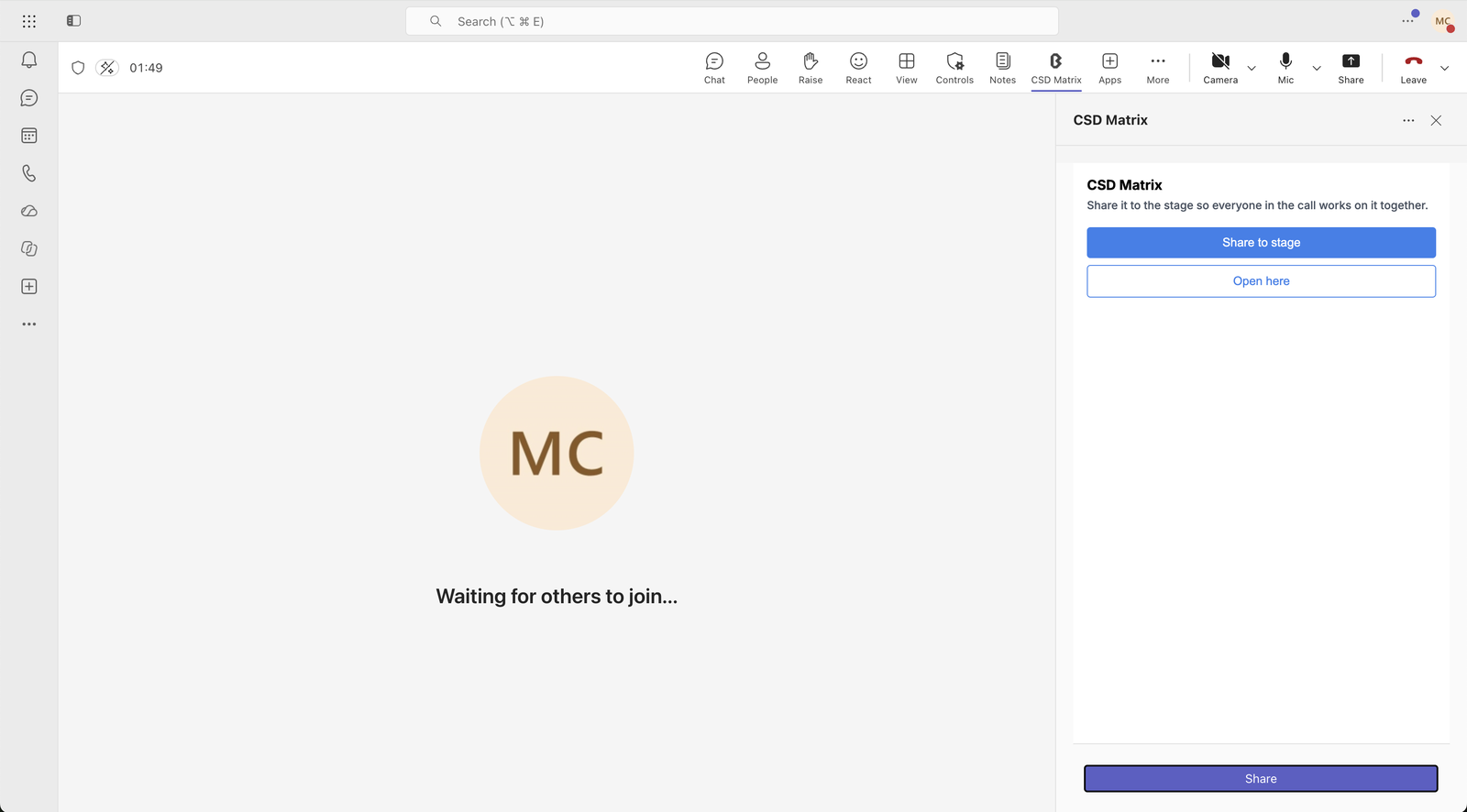
Section titled “Meetings”Add Bizby to a meeting, then select Share to stage in the Bizby side panel. Each participant gets the live board and can work on it, after the same sign-in as a tab. Only the meeting’s organiser and presenters can share to the stage.
Link cards and board search
Section titled “Link cards and board search”When someone pastes a Bizby board link, Bizby turns it into a card, but only if the person who pasted it can open the board. Otherwise Teams shows its usual plain link preview, and no board details are revealed. A share link gets a card while link sharing is on for that board, since the link itself grants access.
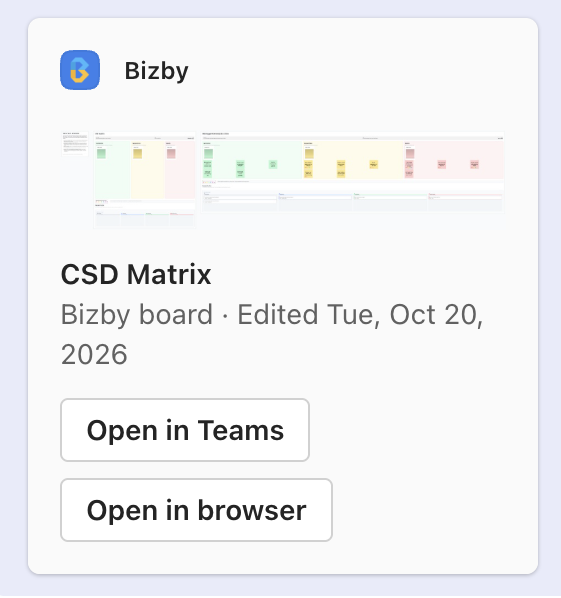
A card shows the board’s name and thumbnail to everyone in the conversation, just as typing the name would. Opening the board still checks each person’s access.
The Bizby icon under the message box searches the person’s own boards and posts the chosen board as a card.
Link cards and board search work in channels, group chats and chats with people in your organisation. Teams does not run apps in someone’s chat with themselves, or in one-on-one chats with people from other organisations, so links there show Teams’ plain preview.
Microsoft 365 Copilot
Section titled “Microsoft 365 Copilot”The app includes the Bizby agent for Microsoft 365 Copilot. In Copilot Chat, people choose Bizby under Agents and ask it to build a board, find one by name, or summarise what the team put on it. Copilot asks before it changes a board. The agent needs your Bizby team owner to turn on the Microsoft 365 Copilot connector in Bizby’s Team settings, and you can allow or block it like any other agent in the Microsoft 365 admin center. See Bizby in Microsoft 365 Copilot.
What Bizby receives from Teams
Section titled “What Bizby receives from Teams”- To sign someone in: a Microsoft sign-in token naming their tenant, their user id and their sign-in name. Bizby keeps the tenant, user id and sign-in name, linked to their Bizby account, so Teams can sign them in next time. Connecting and disconnecting are recorded in your organisation’s Bizby audit log.
- For a pasted link or a search: the link or search text, and who asked. Bizby uses them to answer and does not store them.
- From Copilot: what the person asked the Bizby agent to do, as the request to build, find, read or change a board. Bizby acts on it as that person and keeps only the boards it builds and its audit log entries.
- In meetings: nothing beyond the above. Bizby does not receive audio, video, chat or the participant list.
Bizby never reads your organisation’s mail, files, chats or calendars, and cannot post in Teams.
Removing the app
Section titled “Removing the app”In the Teams admin center, Teams apps → Manage apps → Bizby, choose Block to stop its use, or Delete to remove it. Removing the app does not delete any boards: they stay in Bizby. People can still disconnect their accounts from Profile → Connections.
Questions
Section titled “Questions”Contact support@bizby.ca.