 Features / Board Tools
Workspaces
Overview
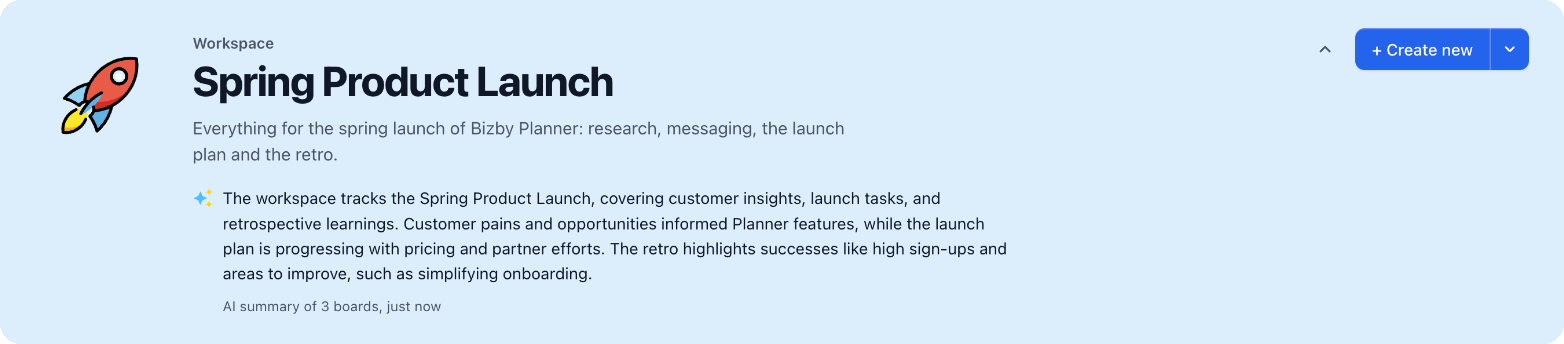
Section titled “Overview”Workspaces group your boards by project, team, client or anything else that fits how you work. Each workspace page has a header with its name, a description, a color and image, and an AI summary of what its boards are about, so anyone opening it knows what it is for and where the work stands.
Key Features
Section titled “Key Features”- Workspace header: a name, a description, a color and an image at the top of every workspace
- AI summary: a short overview of the workspace, made from the boards you choose
- Create new: start a blank board, a board from a template, or import one from Miro, Mural, FigJam or a Bizby board file, right from the workspace
- Board filters: view My Boards, Shared with me or Shared with others
- Drag and drop: move boards between workspaces
- Unlimited workspaces on Team and Team+
Create a Workspace
Section titled “Create a Workspace”- In the dashboard sidebar, click + next to All Workspaces
- Name the workspace
- Create boards in it, or drag existing boards onto it
The Workspace Header
Section titled “The Workspace Header”The person who created a workspace, and the team owner, can edit its header. Hover over the header and click the pencil next to the workspace name to open Edit workspace:
- Name and Description: links in the description can be clicked from the header
- Color: the header’s background
- Image: pick from Doodles or Emoji, or Upload your own PNG, JPEG or WebP image, up to 2 MB. Uploaded images are cropped to fit.
Click the arrow at the top right of the header to collapse it. The collapsed header still shows the name, the description and the first sentence of the summary, and stays collapsed for every workspace on that browser until you expand it again.
AI Summary
Section titled “AI Summary”The summary tells anyone opening the workspace what it covers, what was decided and what is in progress. It is made only when you ask, so opening a workspace never uses AI credits.
Create a summary
Section titled “Create a summary”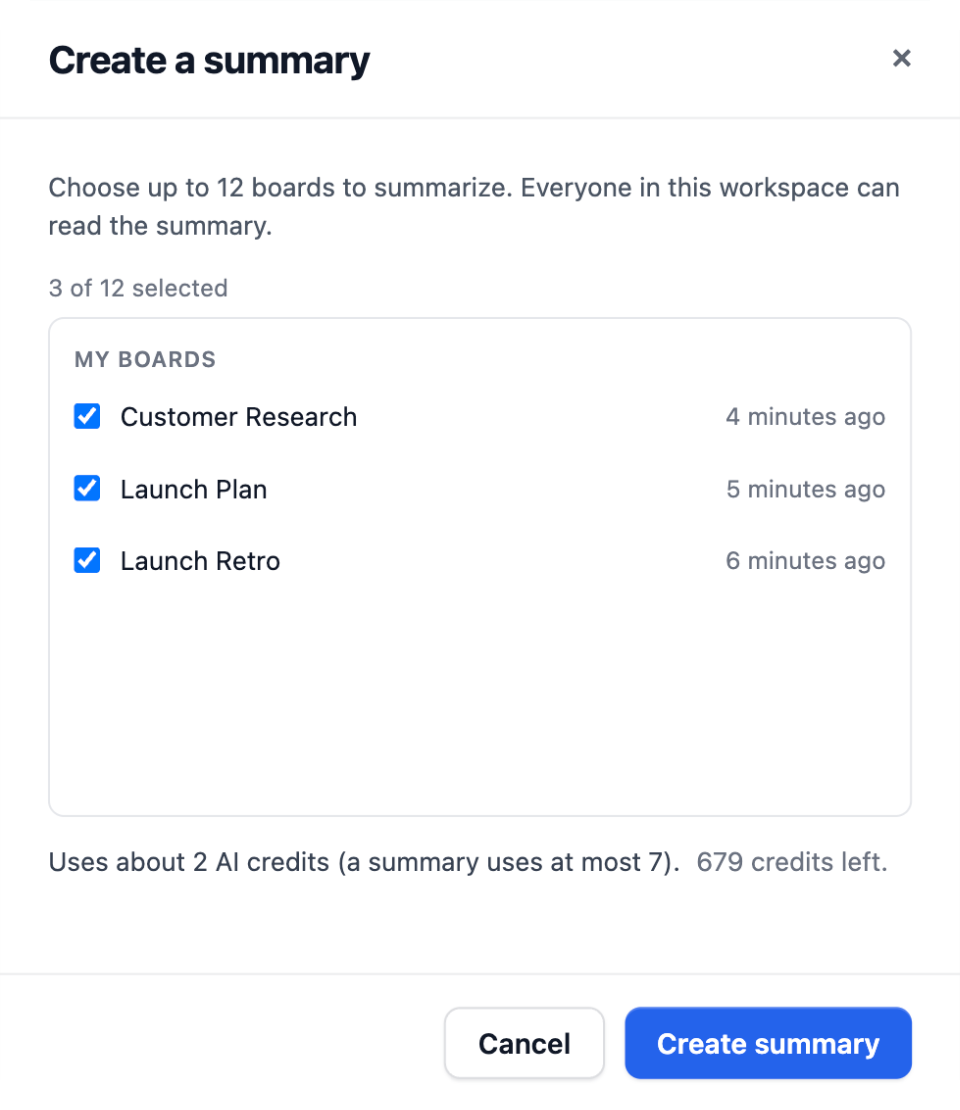
- In the header, click Create summary
- Choose up to 12 boards:
- My boards lists your own boards. The most recently edited are ticked.
- Shared with me lists other people’s boards in the workspace. Tick any you want included.
- Check the cost under the list. It shows about how many AI credits the summary uses, and how many you have left. A summary uses at most 7 credits.
- Click Create summary
A board marked Partly read is too large to read in full, so the summary covers its first items. A board marked Nothing to read yet has no content.
Keep it up to date
Section titled “Keep it up to date”- Under the summary, the header says how many boards it covers and when it was made, and notes when boards have changed since
- Refresh summary opens the same choice of boards, with the boards the current summary covers already ticked
- Edit lets you rewrite the summary by hand, and Remove takes it away
If your organization has turned AI off, the header says so instead of offering a summary. When your team is out of AI credits, the header links to upgrading or getting more credits.
Create New
Section titled “Create New”Create new at the top right of the workspace makes a blank board in the workspace. The arrow next to it opens more ways to create:
- Blank board
- From a template: creates the board and opens the template library
- Import: From Miro, From Mural, From FigJam or From a Bizby board file
Board Filters
Section titled “Board Filters”- My Boards: boards you own in this workspace
- Shared with me: boards others have shared with you
- Shared with others: your boards you have shared with someone
Related Features
Section titled “Related Features”- Bizby AI: other AI features and how AI credits work
- Templates: start boards from templates within any workspace
- Miro Import, Mural Import and FigJam Import
- Sharing & Share Links: share individual boards
- Feature Overview: see all Bizby features