 Features / Collaboration
Bizby Connect
Overview
Section titled “Overview”Getting a room onto a board used to mean pasting a long link into a chat and hoping everyone found it. With Bizby Connect, you put a join frame on the board: a QR code and a short code, big enough to read from the back of the room. People go to bizby.ca/connect and type the code, or scan the QR code, and they are on the board. Nobody needs an account.
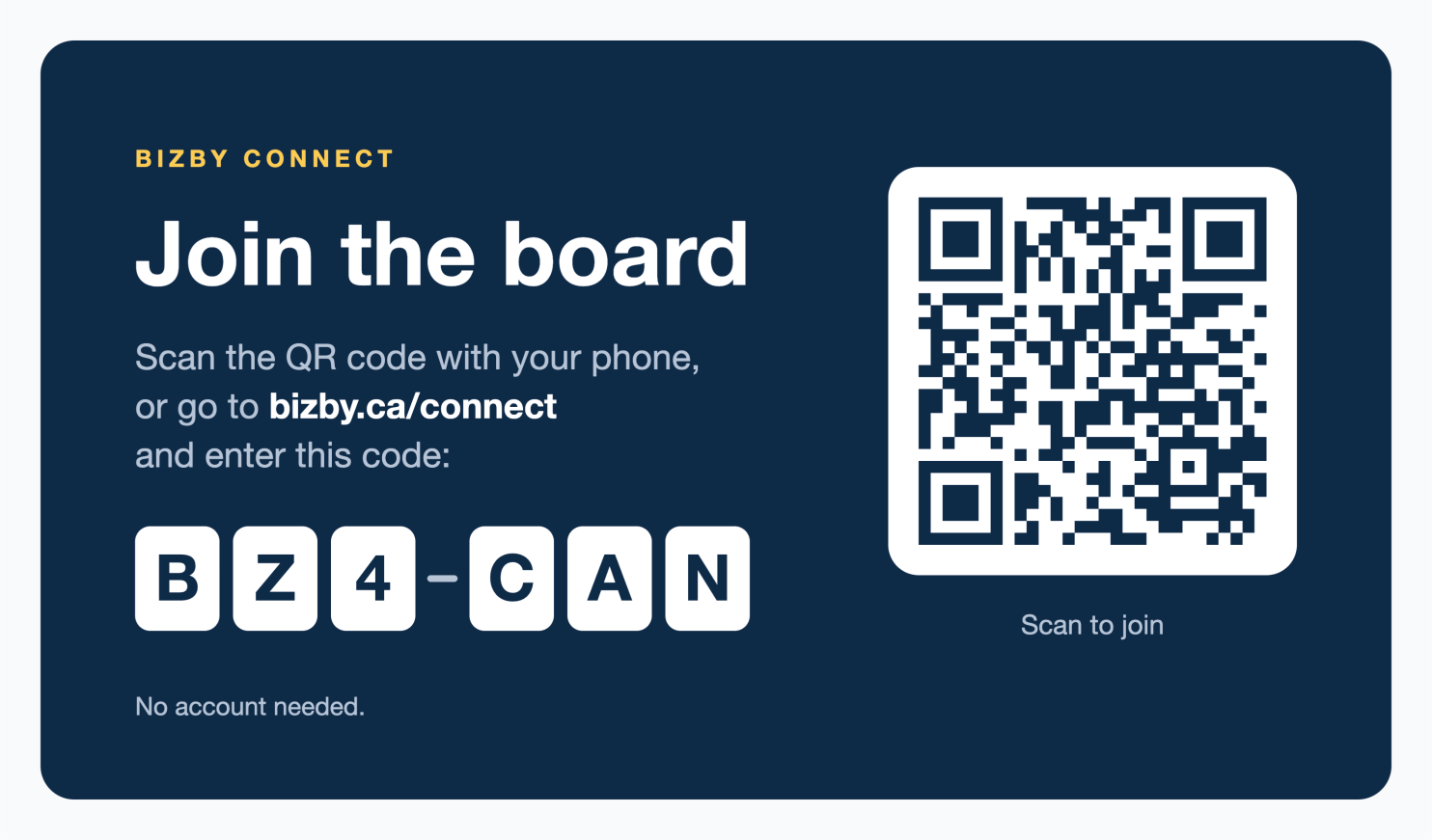
Bizby Connect is for people who will work on the board with you. If you are presenting and only want answers from phones, use a question or a poll instead: those people answer without joining the board.
Add join instructions
Section titled “Add join instructions”- Open the Bizby Connect menu in the toolbar and choose Join instructions.
- Click the board where you want the frame to go. It is sized to read at a glance and you can move or resize it like any other shape.
- If the board’s share link is off, Bizby asks what people who join can do: View, Comment or Edit. Choose one and select Turn on and add. You can change this any time in Share.
The frame shows in the language you are using when you place it, English or French, because it is written for the whole room to read.
How people join
Section titled “How people join”- Go to bizby.ca/connect and type the six-character code. The code skips letters and numbers that are easy to confuse, like O and 0 or I and 1, and joining starts as soon as the last character is in.
- Scan the QR code with a phone camera. It opens the board straight away.
Boards are view-only on phones, so people who join from a phone follow along. To work on the board, join from a computer.
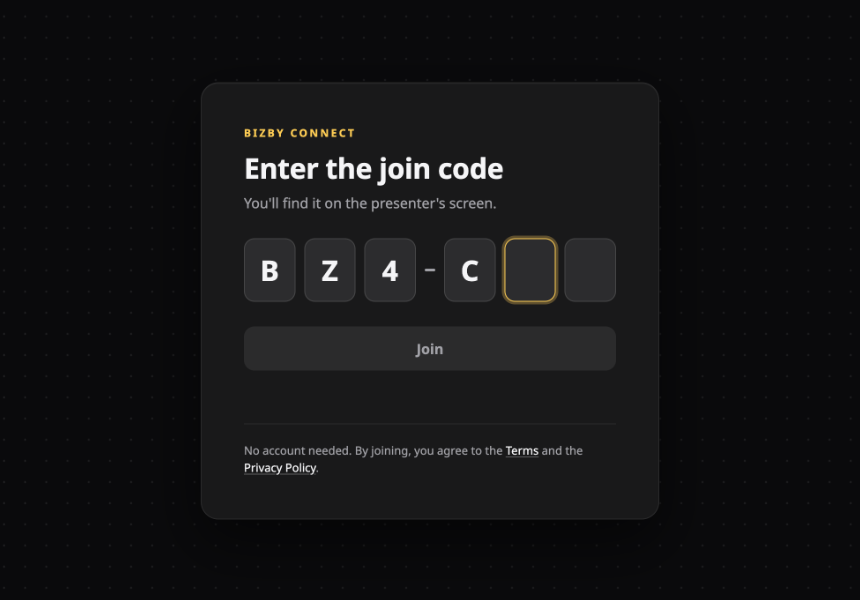
People join with the board’s share link, so they get the access you chose for the link. Signed-in members of your team keep their own access.
Copy the link or change the code
Section titled “Copy the link or change the code”Select a join frame to see its controls:
- Copy link copies the join link, ready to paste into a chat, an email or a calendar invite.
- New code replaces the code on every join frame on the board. The old code stops working right away. People already on the board stay on it.
Use New code when a code has travelled further than the room, for example after a session that was recorded or streamed.
What turns a code off
Section titled “What turns a code off”- Turning the share link off in Share closes the code too. Turn the link back on and the same code works again.
- Replacing the code with New code.
- A plan below Team+. If the team’s plan changes to one without Bizby Connect, its codes stop working. The board’s share link itself keeps working.
Availability
Section titled “Availability”Bizby Connect is included with Team+ and Enterprise. People who join need no account and no plan of their own. On other plans, Join instructions shows a Team+ badge and offers the upgrade.
Only people who can manage the board’s sharing can add join instructions: the board’s owner, the team owner and editors who are members of the board’s team. If your organization has turned off share links, joining with a code is off too.